

iPhone fix shop near me in Colombo – Understanding the Role of Thermal Management in Device Longevity Welcome to the Genius We Fix blog! Today, we’re delving into a crucial but often overlooked aspect of your electronic devices: thermal management. Whether you’re using a smartphone, laptop, or tablet, understanding how heat affects your device can significantly impact its longevity and performance. At Genius We Fix, we specialize in repairing and maintaining devices from major brands like Apple, Samsung, and more. If you’ve ever wondered about finding “iPhone fix shops near me,” you’re in the right place to learn why managing heat is essential for your device and how it can help you avoid costly repairs in the future. What is Thermal Management? Thermal management refers to the techniques and systems used to control the temperature of electronic devices. Proper thermal management ensures that a device operates within its optimal temperature range, preventing overheating and potential damage. This involves using components like heat sinks, thermal pads, and cooling fans, as well as designing the device’s internal layout to facilitate effective heat dissipation. Why is Thermal Management Important? Preventing Overheating: Devices generate heat during operation, especially under heavy usage. Excessive heat can cause components to malfunction or degrade more quickly. Effective thermal management helps dissipate this heat, preventing overheating and maintaining stable performance. When searching for “iPhone fix shops near me,” it’s essential to choose a service that understands the importance of thermal management to ensure your device is handled correctly. Enhancing Performance: Modern devices are designed to handle demanding tasks, from high-resolution gaming to complex multitasking. When temperatures rise too high, devices may throttle their performance to cool down, leading to slower speeds and reduced efficiency. Proper thermal management keeps temperatures under control, ensuring your device performs at its best. So, if you’re experiencing performance issues, visiting a knowledgeable “iPhone fix shop near me” can be a wise choice. Extending Device Lifespan: Heat significantly impacts the wear and tear of electronic components. Over time, high temperatures can lead to hardware failure, affecting your device’s reliability and lifespan. By managing heat effectively, you can extend the life of your device and avoid premature hardware issues. If you notice signs of overheating or performance drops, visiting an “iPhone fix shop near me” can help address these problems before they cause permanent damage. Common Signs of Poor Thermal Management Overheating: If your device feels excessively hot to the touch or shuts down unexpectedly, it may be overheating. This can be a sign that thermal management is failing. If these symptoms persist, finding a reliable “iPhone fix shop near me” to diagnose and address the issue might be necessary. Performance Slowdowns: Lagging, stuttering, or sudden drops in performance can indicate that your device is throttling due to high temperatures. Persistent performance issues might point to a thermal management problem. In such cases, seeking help from an “iPhone fix shop near me” can provide you with the expertise needed to resolve these issues effectively. Fan Noise: For laptops and desktops, unusual or excessive fan noise can suggest that the cooling system is working harder than necessary. This could be due to dust buildup or a malfunctioning cooling component. If you hear abnormal fan noises, visiting a “fix shop near me” can help ensure your device’s cooling system is properly maintained. Tips for Maintaining Optimal Thermal Management Keep Vents and Fans Clean: Dust and debris can clog vents and fans, reducing their effectiveness. Regularly clean your device’s vents and ensure that fans are functioning properly. For laptops and desktops, use compressed air to remove dust from internal components. If you’re unsure how to do this, a visit to an “iPhone fix shop near me” can provide professional cleaning services. Use Cooling Pads: Cooling pads can help provide additional airflow for laptops, especially during intensive tasks like gaming or video editing. They aid in better heat dissipation and can be a valuable addition to your device maintenance routine. Avoid Overloading Your Device: Running too many applications simultaneously can cause excessive heat buildup. Manage your device’s workload and close unnecessary applications to reduce strain on the system. If you experience frequent overheating, seeking advice from an “iPhone fix shop near me” might help optimize your device’s performance. Ensure Proper Ventilation: Place your device on hard, flat surfaces to ensure adequate airflow. Avoid using it on soft surfaces like beds or couches that can block ventilation. Proper ventilation helps maintain optimal operating temperatures. Monitor Temperature: Use software tools to monitor your device’s temperature. Many devices have built-in sensors and software that can alert you if temperatures approach critical levels. If you notice any irregular temperature readings, consult an “iPhone fix shop near me” for a thorough check-up. FAQ Q: How can I check if my device is overheating? A: Most devices have built-in temperature monitoring tools or apps that can show you real-time temperature data. If your device feels hot to the touch or exhibits performance issues, it might be overheating. If you’re unsure, visiting an “iPhone fix shop near me” can provide accurate diagnostics. Q: What should I do if my laptop fan is unusually loud? A: Excessive fan noise might indicate dust buildup or a malfunctioning cooling system. Cleaning the vents and fans could help, but if the noise persists, professional servicing might be required. An “iPhone fix shop near me” can offer specialized cleaning and repair services. Q: Can thermal management issues cause permanent damage to my device? A: Yes, prolonged overheating can lead to permanent damage to internal components. Effective thermal management is crucial to prevent such damage and ensure your device’s longevity. Q: How often should I clean my device’s vents and fans? A: It’s a good practice to clean your device’s vents and fans every 6-12 months, depending on usage and environment. Regular maintenance helps prevent dust buildup and ensures proper cooling. Q: What are the signs that my thermal management system needs repair? A: Signs include frequent overheating, performance throttling, loud fan

Fix an iPhone Near Me in Colombo: Diagnostic Check Guide
Fix an iPhone near me in Colombo – What to Expect During a Diagnostic Check: A Step-by-Step Guide If you’re looking to “fix an iPhone near me ,” Genius We Fix is your go-to destination. We specialize in diagnosing and repairing a variety of electronic devices, including iPhones and other major brands. Here’s a step-by-step guide to what you can expect during a diagnostic check at our service center. Initial Consultation What Happens: When you bring your iPhone to us, the first step is a consultation with our expert technicians. We’ll discuss the issues you’re experiencing—whether it’s a cracked screen, battery problems, or any other malfunction. This conversation helps us understand the problem better and plan the next steps to fix your iPhone near me. What You Should Do: Provide detailed information about the issue. Mention any error messages, unusual behavior, or specific incidents that might have led to the problem. The more details you provide, the more accurately we can diagnose the issue and determine the best way to fix your iPhone near me. Device Inspection What Happens: Our technicians will perform a physical inspection of your iPhone. We check for visible signs of damage such as cracks, dents, or water exposure. This helps us identify any hardware issues that might be affecting the device’s performance, which is essential for deciding how to fix your iPhone near me. What You Should Do: If your iPhone has been exposed to water or dropped recently, let us know. This information is crucial for diagnosing the problem accurately and finding the most effective way to fix your iPhone near me. Diagnostic Testing What Happens: We conduct a series of diagnostic tests to evaluate your iPhone’s performance. This includes checking the battery health, running software diagnostics, and testing various functions like Wi-Fi, Bluetooth, and the touch screen. For more complex issues, we may use specialized diagnostic tools to pinpoint how best to fix your iPhone near me. What You Should Do: Be prepared for us to connect your iPhone to diagnostic equipment or access it remotely if necessary. This helps us conduct a thorough evaluation of the device and provides insights into how we can fix your iPhone near me. Data Backup (if applicable) What Happens: If our diagnostics suggest that repairs might risk data loss, we recommend backing up your iPhone’s data. We offer assistance with data backup to ensure your important files are secure before proceeding with any repairs. What You Should Do: If you haven’t already backed up your data, it’s a good idea to do so before bringing your iPhone in. If you need help with this process, our technicians can guide you through it, especially when you need to fix an iPhone near me. Diagnosis and Explanation What Happens: After completing the tests, we’ll analyze the results and provide you with a detailed diagnosis. We’ll explain the problem in clear, understandable terms and discuss the recommended repairs to fix your iPhone near me. What You Should Do: Ask any questions if you need more information or clarification about the diagnosis and repair options. Understanding the problem will help you make informed decisions about fixing your iPhone near me. Repair Recommendations and Cost Estimate What Happens: We provide a repair plan and cost estimate based on our diagnosis. This includes a breakdown of the repairs needed, the costs involved, and the expected turnaround time. We’ll also discuss any alternative solutions if available. What You Should Do: Review the repair plan and cost estimate carefully. If you have any concerns about the costs or repair options, discuss them with us to ensure you’re comfortable with the proposed solution for fixing your iPhone near me. Approval and Repair What Happens: Once you approve the repair plan, our technicians will begin the repair process. We use high-quality parts and adhere to industry standards to ensure your iPhone is repaired effectively. What You Should Do: If you have any changes to the repair plan or additional questions during the repair, let us know. We’ll keep you updated on the progress of fixing your iPhone near me. Post-Repair Testing and Quality Check What Happens: After the repair, we perform a thorough quality check and testing to ensure your iPhone is functioning correctly. We verify that all repaired components are working as intended and that the original issue has been resolved. What You Should Do: Test your iPhone upon pickup to make sure everything is working properly. Contact us immediately if you notice any issues or discrepancies after fixing your iPhone near me. Device Pickup and Final Instructions What Happens: When your iPhone is ready for pickup, we provide final instructions and discuss any warranties or guarantees associated with the repair. What You Should Do: Follow the provided instructions to maintain your iPhone and take note of any warranty details. Reach out to us if you have further questions or need additional assistance after fixing your iPhone near me. FAQs Q: How long does a diagnostic check take? A: The time required depends on the complexity of the issue and the type of device. Typically, a diagnostic check can take from 30 minutes to a few hours. We’ll provide an estimated time frame during your initial consultation for fixing your iPhone near me. Q: Will I be charged for the diagnostic check? A: Some diagnostic checks are complimentary, while others may incur a fee, which is often applied towards the repair cost if you proceed with the recommended services. We’ll inform you of any costs upfront. Q: Can I leave my iPhone for a diagnostic check without an appointment? A: While walk-ins are welcome, we recommend scheduling an appointment to ensure prompt service. This allows us to allocate time for your iPhone and provide a thorough diagnostic to fix your iPhone near me. Q: What if I choose not to proceed with the repair? A: If you decide not to proceed with the repair, we will return your iPhone to you. Any diagnostic fees,

iPhone Fix It Near Me: Fast Boosts by Genius We Fix,Colombo
iPhone fix it near me in Colombo – How to Improve Your Device’s Performance Without a Full Repair At Genius We Fix, experts in repairing Apple, Samsung, and other major brands of phones, laptops, desktops, and tablets, we understand that you might not always need a full repair to enhance your device’s performance. If you’re looking for ways to boost your device’s efficiency without opting for a complete overhaul, we’ve got you covered. This blog post will guide you through practical steps to improve your device’s performance and may even help you when you need to iPhone fix it near me. Clear Out Unnecessary Files and Apps Why It Helps: Over time, devices accumulate unnecessary files and apps that can slow down performance. Removing these can free up valuable storage space and improve your device’s speed. How to Do It: For Phones and Tablets: Go through your apps and delete those you no longer use. Clear cache and temporary files in the settings menu. This is especially useful if you’re searching for ways to iPhone fix it near me. For Laptops and Desktops: Use built-in disk cleanup tools to remove unnecessary files. Uninstall programs that you don’t use frequently. This can be a good first step before considering a full repair, like when you need to iPhone fix it near me. Update Your Software Why It Helps: Software updates include performance improvements, security patches, and bug fixes that can enhance your device’s speed and stability. How to Do It: For Phones and Tablets: Check for system updates in the settings menu and install the latest updates. This step is often recommended if you’re considering options for an iPhone fix it near me. For Laptops and Desktops: Ensure your operating system and software applications are up to date. Most systems have update options available in their settings or control panel, which can be beneficial before a full repair. Optimize Startup Programs Why It Helps: Many programs are set to launch automatically when your device starts up. Disabling unnecessary startup programs can improve boot times and overall performance. How to Do It: For Laptops and Desktops: Access the task manager (Windows) or system preferences (Mac) to disable unnecessary startup programs. This is a helpful step to consider if you’re looking to iPhone fix it near me. For Phones and Tablets: Limit background apps that automatically start or refresh by adjusting settings in the app manager. Manage Your Device’s Battery Health Why It Helps: Battery health impacts performance. Keeping your battery in good condition helps maintain optimal performance. How to Do It: For Phones and Tablets: Avoid letting your battery drain completely and use battery-saving modes available in the device settings. This can be useful advice for those needing to iPhone fix it near me. For Laptops and Desktops: Calibrate your battery periodically and avoid overcharging. Many laptops have battery health management tools in their settings. Perform Regular Reboots Why It Helps: Restarting your device clears temporary memory and can resolve minor performance issues. How to Do It: For Phones and Tablets: Simply turn off your device and turn it back on after a few seconds. Regular reboots can help improve performance and are a good interim solution before needing to iPhone fix it near me. For Laptops and Desktops: Restart your computer from the operating system’s shutdown menu. Check for Malware and Run Security Scans Why It Helps: Malware and viruses can significantly affect performance. Running security scans ensures your device is free from malicious software. How to Do It: For Phones and Tablets: Use trusted security apps to scan for malware. For Laptops and Desktops: Run antivirus software to detect and remove any threats that may be impacting your device’s performance. This can help before considering a full repair, like when you need to iPhone fix it near me. Manage Storage and Optimize Performance Settings Why It Helps: Adequate storage space and optimized settings can improve your device’s speed and efficiency. How to Do It: For Phones and Tablets: Move photos and videos to cloud storage or an SD card if supported. This can be an effective measure if you’re exploring options for an iPhone fix it near me. For Laptops and Desktops: Consider upgrading your storage (e.g., SSD) for better performance. Adjust performance settings to prioritize speed over visual effects. FAQs Q: How often should I update my device’s software? A: It’s recommended to check for and install updates regularly, ideally whenever a new update is available. Software updates often include important performance and security improvements, which can be especially useful if you’re considering options for an iPhone fix it near me. Q: What should I do if my device is still slow after clearing files and updating software? A: If your device remains sluggish, consider additional steps such as optimizing startup programs, running security scans, and checking for hardware issues. If problems persist, professional repair may be necessary, such as finding a reliable place to iPhone fix it near me. Q: Can I improve my device’s performance without losing any data? A: Yes, many performance improvements can be made without affecting your data. Always back up your important files before making significant changes. Q: How can I tell if my device needs a full repair? A: If you’ve tried optimizing performance through various methods and your device still exhibits issues like frequent crashes or hardware malfunctions, it might be time to consult a professional for a full repair assessment. This is particularly relevant if you’re searching for an iPhone fix it near me. Q: Are there any tools that can help with performance optimization? A: Yes, many devices come with built-in performance optimization tools. Additionally, third-party applications and software designed for performance enhancement can be used, but make sure they are from reputable sources. We hope these tips help you enhance your device’s performance effectively. If you need further assistance or a professional repair, Genius We Fix is here to support you with all your repair needs. Contact

Phone Screen Repair Shop Near Me-Safely Upgrade Your Storage
How to Safely Upgrade Your Device’s Storage: Tips and Tricks-Phone Screen Repair Shop Near Me In an age where data storage needs continue to grow, upgrading your device’s storage can be a game-changer. Whether you’re running out of space on your smartphone, laptop, or tablet, increasing your storage capacity can enhance performance and provide the room you need for your files and applications. At Genius We Fix, your experts in Apple, Samsung, and other major brand repairs, we understand the importance of a smooth storage upgrade. If you’re searching for “phone screen repair shop near me” for related repairs, we’ve got you covered. Here’s how to safely and effectively upgrade your device’s storage with our expert tips and tricks. Assess Your Storage Needs Before diving into an upgrade, evaluate how much additional storage you need. Consider factors such as the size of files you regularly work with, the number of applications you use, and any future needs. For instance, if you’re a photographer or videographer, you might need significantly more space than a casual user. Knowing your requirements will help you choose the right type of storage upgrade. Check Your Device’s Compatibility Not all devices support storage upgrades, and those that do may have specific requirements. Check your device’s specifications or consult the manufacturer’s documentation to understand what types of storage upgrades are compatible. For laptops and desktops, you may have the option to upgrade the hard drive or add a solid-state drive (SSD). For smartphones and tablets, the options might be more limited, often involving internal components that require professional installation. Backup Your Data Before upgrading your storage, it’s crucial to back up all your data. This precaution ensures that you don’t lose important files during the upgrade process. Use cloud storage services, external hard drives, or backup software to create a secure copy of your data. If you’re unsure how to back up your data or need assistance, our team at Genius We Fix can help ensure your files are safely stored. Choose the Right Storage Option When upgrading, you’ll need to choose the appropriate type of storage for your device. Here are some common options: Hard Disk Drives (HDDs): Traditional and cost-effective, ideal for larger storage needs. Solid-State Drives (SSDs): Faster and more reliable than HDDs, though typically at a higher cost. MicroSD Cards: Useful for smartphones and tablets, providing additional space without internal modifications. External Storage: Portable and flexible, great for backing up or expanding storage without internal changes. Ensure that the storage you choose is compatible with your device and meets your performance and capacity requirements. Follow Manufacturer Guidelines Each device has its own set of guidelines for upgrading storage. Follow the manufacturer’s instructions to avoid voiding your warranty or causing damage. For laptops and desktops, this may involve opening the device and installing a new drive, while for smartphones and tablets, it might require professional service. Consider Professional Installation If you’re not comfortable with DIY upgrades or if your device’s storage is not easily accessible, consider seeking professional help. If you’re also dealing with issues like a cracked screen or other hardware problems, finding reputable “phone screen repair shop near me” can provide comprehensive support. At Genius We Fix, we specialize in upgrading storage for a wide range of devices, including Apple, Samsung, and other major brands. Our experts ensure that the upgrade is done safely and efficiently, with minimal disruption to your device’s functionality. Test Your New Storage After the upgrade, verify that the new storage is properly installed and functioning. Check that your device recognizes the additional space and that you can access and save files without issues. Run a few tests to ensure that performance is as expected and that there are no errors or glitches. Maintain Your Storage Once your upgrade is complete, maintaining your storage is key to keeping your device running smoothly. Regularly clean up unnecessary files, manage storage efficiently, and perform routine backups. This practice will help you get the most out of your upgraded storage and keep your device in optimal condition. Need Help with Your Storage Upgrade? Upgrading your device’s storage can significantly enhance its performance and functionality. If you’re unsure about the process or need professional assistance, Genius We Fix is here to help. As experts in repairs for Apple, Samsung, and other major brands, we offer reliable and efficient storage upgrade services to meet your needs. And if you’re also looking for “phone screen repair shop near me,” we can address those issues as well. Don’t let storage issues or a damaged screen hold you back—contact us today to learn more about how we can assist with your storage upgrade and ensure your device operates at its best. For expert repairs and reliable service, reach out to Genius We Fix today! Or call – +94751377619 Find our location via google map: 71,A Rathnakara place, Dehiwala, Colombo, Srilanka. FAQ 1. What types of storage upgrades are available for my device? For laptops and desktops, you can opt for a larger hard drive (HDD) or, alternatively, choose a faster solid-state drive (SSD). On the other hand, smartphones and tablets may use microSD cards to increase storage. Additionally, external storage options are available across all devices, offering flexibility. If you’re considering an upgrade, visit a “phone screen repair shop near me” like Genius We Fix for expert advice. 2. How do I know if my device supports a storage upgrade? First, check your device’s specifications or consult the manufacturer’s documentation. Consequently, you will understand whether a storage upgrade is supported. Moreover, some devices may have specific requirements or limitations, so review these details carefully. For personalized assistance, a “phone screen repair shop near me” can help verify compatibility. 3. What should I do before upgrading my device’s storage? Before proceeding, it is crucial to back up all your data to prevent any potential loss. To achieve this, use cloud storage services, external hard drives, or backup software. By taking these precautions, you will secure

Fix phone shop near me – Spot Wear and Tear in Your Devices
How to Spot Early Signs of Wear and Tear in Your Devices – Fix phone shop near me Whether it’s your smartphone, laptop, or tablet, recognizing the early signs of wear and tear can prevent more significant issues down the road. At Genius We Fix, your go-to experts for Apple, Samsung, and other major brand repairs, we want to help you keep your devices in top shape. If you’re wondering, “Where can I find a fix phone shop near me?” we’ve got you covered. Here’s how to spot early warning signs and take proactive steps to ensure longevity. Unusual Performance Issues One of the first indicators of wear and tear is performance lag. If your device is suddenly slow, freezing, or crashing, it may be struggling due to internal damage or outdated components. For laptops and desktops, sluggish performance might be due to aging hardware or dust buildup affecting cooling. For smartphones and tablets, this could indicate a failing battery or software issues. If you’re experiencing these problems, searching for a “fix phone shop near me” might be your next step to get expert help. Battery Problems Battery issues are common as devices age. If you notice your battery drains quickly or doesn’t hold a charge, it’s a sign of wear. Phones and tablets with swollen or discolored batteries should be addressed immediately, as this could pose safety risks. Regularly check your device’s battery health in the settings to gauge its condition. If battery problems persist, finding a reliable “fix phone shop near me” can ensure you get the right replacement or repair. Screen Issues Cracks, dead pixels, or discoloration on your screen are clear signs of physical wear. Even minor cracks can worsen over time, leading to more extensive damage. If you experience flickering, unresponsive touch areas, or strange lines, it might be time for a screen replacement or repair. For those searching for a “fix phone shop near me,” we offer comprehensive screen repair services to get your device looking and working like new again. Connectivity Problems Trouble with Wi-Fi, Bluetooth, or charging ports can signal hardware issues. Devices that frequently lose connection or fail to charge might have damaged ports or internal connections. These problems can often be fixed by a professional, so don’t wait until they worsen. When looking for a “fix phone shop near me,” ensure they offer specialized services to address these connectivity problems effectively. Unusual Noises Unusual sounds such as grinding, buzzing, or clicking from your device are red flags. For laptops and desktops, these noises often indicate failing hard drives or fans. Smartphones may make strange noises if there’s an issue with internal components. Address these issues promptly to avoid further damage. A local “fix phone shop near me” can provide expert diagnostics and repairs to resolve these noises. Overheating Devices that become excessively hot can suffer from overheating due to dust buildup in vents, failing fans, or inefficient thermal management. Regularly clean vents and ensure your device is used on hard surfaces to maintain proper airflow. Overheating can lead to severe internal damage if not addressed. If your device is overheating frequently, finding a “fix phone shop near me” with expertise in thermal management can help keep your device cool and functioning properly. Physical Wear and Tear Look for signs of physical wear such as loose buttons, damaged ports, or worn-out keyboard keys. These issues can indicate underlying problems with your device’s build or internal components. If you notice any of these signs, it’s worth having a professional assess the device. If you’re searching for a “fix phone shop near me,” we provide thorough inspections and repairs to address physical wear and extend your device’s lifespan. When to Seek Professional Help While some minor issues can be resolved with simple fixes or adjustments, more serious problems require professional attention. At Genius We Fix, our experts specialize in diagnosing and repairing a wide range of devices from Apple, Samsung, and other major brands. If you spot any of the signs mentioned above and need professional repair services, don’t hesitate to contact us. For those searching for a reliable “fix phone shop near me,” we offer expert diagnostics and repair services to keep your devices in optimal condition. Regular maintenance and prompt action can extend the life of your devices and prevent costly repairs. Stay vigilant and take care of your electronics to keep them running smoothly. For expert repairs and reliable service, reach out to Genius We Fix today! Or call – +94751377619 Find our location via google map: 71,A Rathnakara place, Dehiwala, Colombo, Srilanka. FAQ 1. What are the early signs of wear and tear in my devices? Early signs of wear and tear include performance issues like lagging or freezing, battery problems such as rapid drainage, screen issues like cracks or dead pixels, connectivity problems, unusual noises, overheating, and physical damage. Identifying these signs early can help you address them before they become major issues. 2. How do I know if my device needs professional repair? If your device is experiencing persistent performance issues, battery problems, screen damage, connectivity issues, unusual noises, overheating, or physical wear and tear, it’s best to seek professional help. A reliable “fix phone shop near me” can provide diagnostics and repair services to resolve these problems effectively. 3. What should I do if my phone’s battery isn’t holding a charge? If your phone’s battery drains quickly or doesn’t hold a charge, it might be time for a replacement. Check the battery health in your device’s settings. If issues persist, finding a “fix phone shop near me” can ensure you get the right replacement or repair. 4. How can I fix a cracked screen? A cracked screen should be addressed promptly to prevent further damage. For those searching for a “fix phone shop near me,” professional repair services can replace or repair your screen, restoring your device’s appearance and functionality. 5. Why is my device overheating? Overheating can be caused by dust buildup, failing fans,

Repair Smartphone Near Me: Colombo iPhone Fix – Genius We Fix
Common iPhone Problems and How to Fix Them: Repair Smartphone Near Me| Colombo When you’re searching for “repair smartphone near me,” it’s often because your iPhone is experiencing issues that disrupt your daily life. At Genius We Fix, we understand how essential your iPhone is, whether it’s keeping you connected with loved ones or managing your work on the go. Thankfully, many common iPhone problems have simple solutions you can try before seeking professional assistance. Here’s a comprehensive guide to some of these issues and how you can resolve them yourself. If your problem persists, don’t hesitate to visit Genius We Fix for expert help. Battery Draining Quickly Problem: Your iPhone’s battery drains faster than usual, even with minimal usage. Solution: Check Battery Usage: Navigate to Settings > Battery to identify apps consuming excessive power. Closing background apps can help. Adjust Settings: Lower your screen brightness and turn off features like Bluetooth and Location Services when not in use. Update iOS: Make sure your iPhone has the latest iOS version installed, as updates often improve battery life. iPhone Overheating Problem: Your iPhone becomes unusually hot during use or charging. Solution: Remove Case: If you use a case, take it off to allow better airflow around your iPhone. Avoid Direct Sunlight: Keep your iPhone out of direct sunlight, especially when charging. Close Background Apps: Running multiple apps simultaneously can strain the processor and cause overheating. Wi-Fi Connectivity Issues Problem: Your iPhone won’t connect to Wi-Fi networks or keeps dropping the connection. Solution: Restart Router: Power cycle your Wi-Fi router by unplugging it for 30 seconds, then plugging it back in. Forget Network: Go to Settings > Wi-Fi, tap the (i) icon next to your network, then select “Forget This Network” and reconnect. Reset Network Settings: Navigate to Settings > General > Reset > Reset Network Settings. (Note: This will erase saved Wi-Fi passwords.) Frozen or Unresponsive Screen Problem: Your iPhone screen is frozen and doesn’t respond to touch or gestures. Solution: Force Restart: For iPhone 8 and later models, quickly press and release Volume Up, then Volume Down, then press and hold the Side (or Top) button until the Apple logo appears. Update Apps: Outdated or incompatible apps can cause screen freezes. Keep your apps updated via the App Store. Restore iPhone: If the problem persists, back up your iPhone and restore it using iTunes or Finder on a computer. Poor Call Quality Problem: You experience dropped calls, muffled sound, or poor call reception. Solution: Check Signal Strength: Ensure you’re in an area with good cellular coverage. Restart iPhone: Sometimes, simply restarting your iPhone can resolve call quality issues. Update Carrier Settings: Go to Settings > General > About. If a carrier settings update is available, you’ll be prompted to install it. Apps Crashing or Not Opening Problem: Apps on your iPhone crash unexpectedly or fail to launch. Solution: Update Apps: Ensure all apps are up to date from the App Store. Clear App Cache: Some apps allow you to clear cache or data within their settings. Reinstall Problematic Apps: Delete and reinstall apps that consistently crash to resolve issues. Touch ID or Face ID Not Working Problem: Your iPhone’s biometric authentication features fail to recognize your fingerprint (Touch ID) or face (Face ID). Solution: Clean Sensor: Ensure the Touch ID or Face ID sensor and your fingers or face are clean and dry. Re-add Fingerprint or Face: Navigate to Settings > Touch ID & Passcode (or Face ID & Passcode) to re-enroll your fingerprint or face. Reset Settings: Go to Settings > General > Reset > Reset All Settings. (Note: This resets all settings to default, but doesn’t erase your data.) When to Seek Professional Help If you’ve tried these troubleshooting steps and your iPhone problem persists, it may be time to consult a professional. When searching for “repair smartphone near me,” look no further than Genius We Fix. Our expert technicians can diagnose and resolve even the most complex iPhone issues, ensuring your device functions perfectly. Remember, regular maintenance, updates, and careful handling can help prevent many common iPhone problems. By staying informed and proactive, you can keep your iPhone in excellent condition for years to come. If you ever need assistance, simply search for “repair smartphone near me” and visit Genius We Fix, where our dedicated team is ready to provide expert service for all your iPhone and electronic device repair needs. For professional assistance or to schedule a repair, just search “repair smartphone near me” and choose Genius We Fix for reliable, expert service. FAQ: 1. What services are offered? We provide a range of services including screen replacements, battery repairs, water damage restoration, and software troubleshooting. Our goal is to address all common smartphone issues efficiently. 2. How do I find a reliable repair service? Look for repair shops with positive reviews, certified technicians, and transparent pricing. Genius We Fix meets these criteria and is known for delivering high-quality repairs and exceptional customer service. 3. How long does a typical repair take? Repair times vary depending on the issue and the device model. Common repairs like screen or battery replacements can often be completed within an hour. For more complex issues, we provide a time estimate during the initial assessment. 4. Do I need an appointment to get my smartphone repaired? While appointments are not always necessary, scheduling one can help ensure you receive prompt service. At Genius We Fix, we also accept walk-ins and strive to accommodate all customers as quickly as possible. 5. What should I do if I need urgent repair? For urgent repairs, visit us as soon as possible. We prioritize urgent cases and work efficiently to address critical issues. If you have specific concerns, contact us ahead of time to discuss expedited service options. 6. What types of smartphones do you repair? We repair a variety of smartphones, including iPhones, Samsung Galaxy devices, Google Pixels, and more. If you’re unsure about your device, feel free to contact us for confirmation.
“Troubleshooting Samsung Galaxy Issues | Genius We Fix – Repair Phones Near Me”
Samsung Galaxy Troubleshooting: Fixes for Common Issues At Genius We Fix, we understand how essential your Samsung Galaxy device is to your daily life. From staying connected to managing work and entertainment, these devices are a vital part of our routine. If you’re searching for “repair phones near me“, look no further than Genius We Fix, your experts in Apple, Samsung repairs, and all major brands of phones, laptops, desktops, tabs, and electronic repairs. However, like any piece of technology, Samsung Galaxy phones can encounter issues from time to time. Whether you’re dealing with software glitches, hardware problems, or performance issues, here are some common troubleshooting steps to help you get your Samsung Galaxy back on track. Battery Drain Issues Problem: Your Samsung Galaxy’s battery seems to be draining faster than usual. Solution: Check Battery Usage: Go to Settings > Battery to see which apps are consuming the most power. Consider uninstalling or limiting the use of apps that are draining your battery unnecessarily. Adjust Display Settings: Reduce screen brightness or enable auto-brightness to conserve battery life. Turn Off Unused Features: Disable features like Bluetooth, Wi-Fi, and GPS when not in use. Update Software: Ensure your device is running the latest software version as updates often include battery optimization improvements. Overheating Problem: Your Samsung Galaxy feels unusually warm during use. Solution: Remove Case: If you’re using a case, remove it to allow better heat dissipation. Close Background Apps: Overheating can be caused by apps running in the background. Close apps that you’re not actively using. Check for Updates: Software updates can include fixes for overheating issues. Avoid Direct Sunlight: Keep your device out of direct sunlight and away from heat sources when possible. App Crashes or Freezes Problem: Apps on your Samsung Galaxy are crashing or freezing unexpectedly. Solution: Restart Your Device: Sometimes a simple restart can resolve app issues. Update Apps: Ensure all apps are updated to the latest version available from the Google Play Store. Clear App Cache: Go to Settings > Apps > [App Name] > Storage > Clear Cache. Check Storage: Insufficient storage space can cause apps to crash. Delete unused apps or files to free up space. Connectivity Issues Problem: Your Samsung Galaxy has trouble connecting to Wi-Fi, Bluetooth, or mobile networks. Solution: Restart Your Device and Router: Restarting both your phone and Wi-Fi router can often resolve connectivity problems. Forget and Reconnect: For Wi-Fi and Bluetooth issues, forget the network/device and then reconnect. Check Airplane Mode: Make sure Airplane Mode is not enabled accidentally. Reset Network Settings: Go to Settings > General Management > Reset > Reset Network Settings. Slow Performance Problem: Your Samsung Galaxy is running slower than usual. Solution: Clear Cache: Go to Settings > Storage > Cached Data > Clear Cache. Disable Animations: Go to Settings > Developer Options (enable it if not enabled) > Window Animation Scale, Transition Animation Scale, and Animator Duration Scale. Set them to 0.5x or off. Limit Background Processes: Go to Settings > Developer Options > Limit Background Processes > Select ‘No Background Processes’. Factory Reset: If all else fails, consider backing up your data and performing a factory reset (Settings > General Management > Reset > Factory Data Reset). By following these troubleshooting steps, you can often resolve common issues with your Samsung Galaxy device. However, if you continue to experience problems despite these efforts, it may be time to seek professional assistance. At Genius We Fix, our experts specialize in Samsung repairs and are here to help you get your device back in optimal condition. Contact us today for personalized support and reliable solutions tailored to your needs. Your Samsung Galaxy deserves the best care, and we’re here to deliver it. Remember, keeping your device updated, maintaining good habits like regular restarts, and being mindful of app usage can go a long way in preventing future issues. Stay connected, stay informed, and trust Genius We Fix for all your Samsung and electronic repair needs. If you’re looking for “repair phones near me,” Genius We Fix is your local solution for dependable and expert phone repairs. Fore more : Check Out this Link
“Water Damage Recovery Tips | Genius We Fix – Cell Phones Repair Near Me”
Water Damage? Here’s What to Do Immediately with Your Phone Water damage can be a nightmare for any smartphone owner, especially when you’re searching for “cell phones repair near me“. Whether it’s a dropped phone in the sink, a splash from the pool, or an unexpected rain shower, water can wreak havoc on your device if not handled swiftly and correctly. At Genius We Fix, we understand the urgency and stress that comes with water-damaged phones. Here’s a step-by-step guide on what you should do immediately if your phone gets wet: Act Quickly The first and most crucial step is to remove your phone from the water as soon as possible. The longer it stays submerged, the higher the chances of permanent damage. Time is of the essence, so don’t hesitate. Power Off Immediately If your phone is still on, power it off immediately. This helps prevent short circuits that can occur when water meets live electrical components. If the screen is unresponsive, hold down the power button until it shuts down. Remove External Accessories Take off any external accessories like cases, covers, or pop sockets. These can trap moisture and potentially cause further damage to your phone. Dry Gently with a Cloth Use a soft, absorbent cloth to gently wipe down the exterior of the phone. Pay special attention to ports, speakers, and any crevices where water could be trapped. Avoid using paper towels or tissues as they can leave residues. Avoid Heat Sources While it might be tempting to use a hairdryer or place your phone in direct sunlight to speed up the drying process, these methods can actually cause more harm. Excessive heat can damage the internal components of your phone. Use Desiccants If available, place your phone in a bag of silica gel packets or uncooked rice. These desiccants can help absorb moisture from the device. Leave it sealed for at least 24-48 hours to ensure thorough drying. Don’t Power On Immediately After allowing your phone to dry, resist the urge to power it on right away to check if it works. Instead, plug it into a charger and let it charge for a while. This can help determine if the battery and charging ports are functioning properly before attempting to power on. Seek Professional Help If despite your efforts, your phone does not turn on or exhibits unusual behavior, it’s time to bring it to professionals like Genius We Fix, specializing in “cell phones repair near me“. Our experts can assess the extent of the damage and provide the necessary repairs. Attempting DIY repairs can sometimes worsen the situation, so it’s best to leave it to the professionals. Prevention Tips for the Future: Consider using a waterproof case for added protection. Be mindful of where you place your phone, especially around water bodies. Regularly inspect and clean ports and openings to prevent dust and moisture buildup. At Genius We Fix, we are dedicated to restoring functionality to your water-damaged phone quickly and efficiently, offering expert services in “cell phones repair near me”. Our expertise covers repairs for Apple, Samsung, and all major brands of smartphones. Remember, the faster you act and the more cautiously you handle your water-damaged phone, the higher the chances of a successful recovery. More About Us
“Fix Cell Phones Near Me: Genius We Fix’s Battery Life Tips”
Ultimate Guide to Extending Your Phone’s Battery Life In today’s digital age, our smartphones are indispensable tools that keep us connected, informed, and entertained throughout the day. However, one common frustration among phone users is battery life. Whether you’re a heavy user or someone who relies on their phone for occasional tasks, maximizing battery life is crucial for uninterrupted usage. At Genius We Fix, we understand the importance of keeping your device powered up efficiently, especially when you’re searching for “fix cell phones near me.” Here’s our comprehensive guide to extending your phone’s battery life: Optimize Screen Brightness and Timeout The screen is one of the biggest drains on your phone’s battery. Adjusting the brightness to a lower, comfortable level and setting a shorter screen timeout period can significantly conserve battery power, which is essential when seeking to “fix cell phones near me.” Consider using automatic brightness settings where available to adapt to ambient lighting conditions. Manage Background Apps Apps running in the background consume resources, including battery power. Close apps that you’re not actively using to prevent them from draining your battery unnecessarily, a key consideration for anyone looking to “fix cell phones near me.” On both iOS and Android devices, you can check which apps are consuming the most battery and take action accordingly. Enable Power Saving Modes Most smartphones come with built-in power saving modes that optimize performance and limit background activities to conserve battery life, beneficial for those in need of “fix cell phones near me” services. These modes typically adjust CPU usage, screen brightness, and connectivity settings automatically. Enable these modes when you know you’ll need your phone to last longer between charges. Update Your Operating System and Apps Software updates often include optimizations that improve battery efficiency, a critical aspect for users searching for “fix cell phones near me.” Keep your phone’s operating system and apps up to date to benefit from these enhancements. Additionally, outdated apps may have bugs that could contribute to battery drain. Monitor Connectivity Settings Connections like Wi-Fi, Bluetooth, and GPS can drain your battery if left on unnecessarily, an important consideration for those needing to “fix cell phones near me.” Disable these features when you’re not actively using them. Alternatively, utilize airplane mode in areas with poor reception to prevent your phone from constantly searching for a signal. Use Battery-Friendly Apps Some apps are more efficient than others when it comes to battery usage, a crucial factor when looking for places to “fix cell phones near me.” Check app settings to see if there are options to reduce their impact on battery life. Additionally, consider replacing battery-draining apps with alternatives that offer similar functionality but consume less power. Adjust Vibration and Notifications Vibrations and frequent notifications can also contribute to battery drain, something to be mindful of when searching for “fix cell phones near me” services. Consider disabling vibrations for notifications or reducing the number of apps that send frequent alerts. This not only conserves battery but also reduces distractions. Avoid Extreme Temperatures Extreme heat or cold can adversely affect battery performance, a concern for anyone looking for places to “fix cell phones near me.” Avoid exposing your phone to direct sunlight, and if possible, keep it in moderate temperatures. High temperatures can degrade battery capacity over time, affecting its longevity. Manage Location Services Apps that constantly track your location can drain battery life quickly, an issue to address when considering where to “fix cell phones near me.” Review which apps have access to your location and disable this feature for apps that don’t need it. You can also choose to use location services only when the app is in use rather than all the time. Invest in Battery-Saving Accessories External battery packs and cases with built-in batteries can provide additional power when you’re unable to charge your phone conventionally, a helpful resource for anyone seeking to “fix cell phones near me.” Choose accessories from reputable brands to ensure compatibility and safety for your device. To Know more Click here By implementing these tips and tricks, you can significantly extend your phone’s battery life and reduce the frequency of charging, beneficial for anyone needing to “fix cell phones near me.” At Genius We Fix, we specialize in repairing and optimizing smartphones, including Apple and Samsung devices, ensuring that your phone operates at its best when you need it most. Whether you’re actively searching for “fix cell phones near me” or simply want to improve your device’s battery efficiency, our expert technicians are here to help. Stay connected longer and make the most of your mobile experience with these battery-saving strategies.
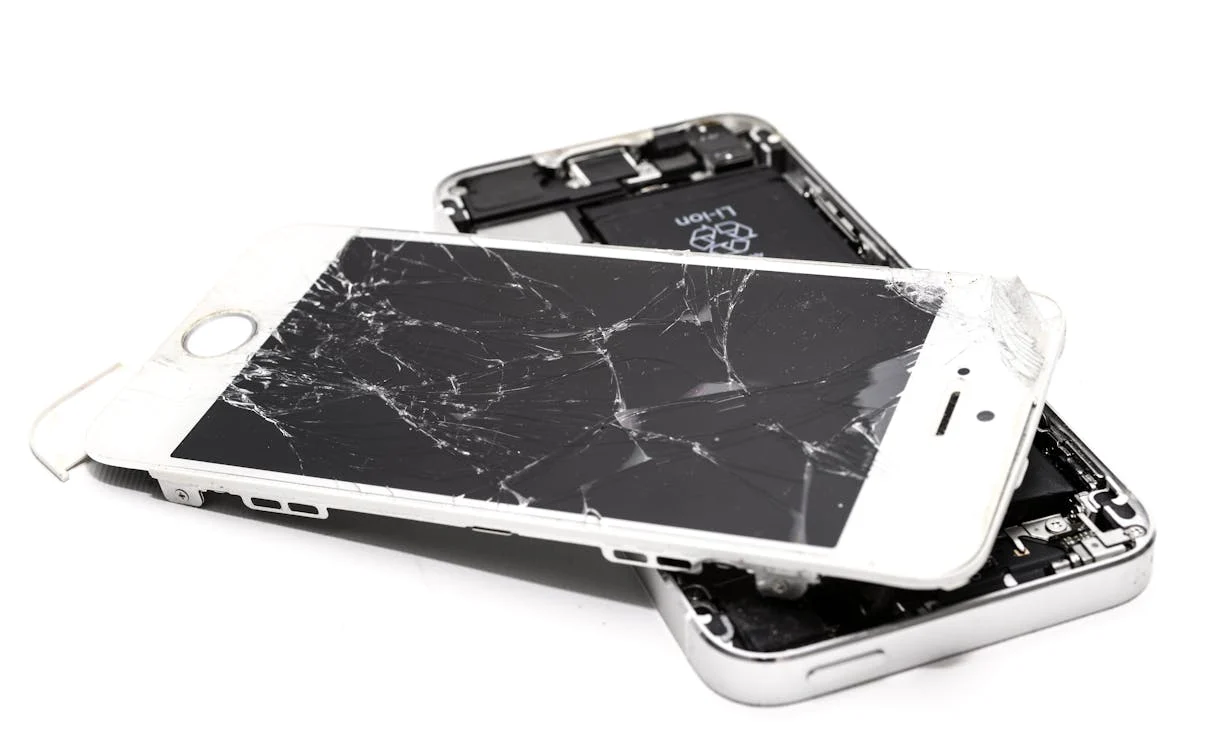
Choosing the Right Screen Protector for Your Phone
Choosing the Right Screen Protector for Your Phone In today’s world, our smartphones are essential tools that we rely on daily. Protecting these devices is not just about their physical appearance but also about ensuring their functionality and longevity. One of the simplest yet most effective ways to safeguard your phone’s screen is by using a screen protector. With a multitude of options available, choosing the right one can be overwhelming. Here’s a guide to help you navigate through the choices and find the perfect screen protector for your needs. Types of Screen Protectors Tempered Glass: Pros: Offers excellent protection against scratches, cracks, and even some impact. Cons: Can be thicker and more noticeable on the screen. PET Plastic: Pros: Thinner and often cheaper than tempered glass. Cons: Provides less protection against impacts and scratches compared to tempered glass. TPU Film: Pros: Extremely thin and flexible, often nearly invisible when applied. Cons: Offers minimal impact protection compared to glass. Factors to Consider When choosing a screen protector, consider the level of protection you need. If you’re prone to dropping or damaging your phone, opt for a tempered glass protector. Its robust construction can significantly reduce the risk of cracks or breaks, ensuring your phone stays intact. For those looking for basic scratch resistance without adding much bulk, PET plastic or TPU film protectors can be a suitable choice. These options are thinner and less noticeable on the screen, maintaining the sleek look of your device. Tempered glass protectors are also preferred for their clarity and touch sensitivity. Unlike plastic films, which may affect the screen’s responsiveness, tempered glass maintains the original feel of your phone’s display. This feature is crucial for users who rely on precise touch gestures and enjoy vibrant screen clarity. Installation ease is another important consideration. Many tempered glass protectors come with installation kits that include cleaning wipes and dust removal stickers to ensure a bubble-free application. This makes the installation process straightforward and hassle-free, even for those who are not tech-savvy. Compatibility with phone cases is often overlooked but essential. Some screen protectors may not work well with certain cases, causing them to lift or peel off. Before purchasing a screen protector, check compatibility details to ensure a seamless fit with your phone case. Recommendations At Genius We Fix, we specialize in fixing phones and understand the importance of protecting your device. We recommend opting for tempered glass screen protectors for their superior durability and clarity. Trusted brands like ZAGG, Spigen, and OtterBox offer reliable options that provide excellent protection without compromising on functionality. Conclusion Investing in a quality screen protector is a wise decision to safeguard your phone against scratches, cracks, and other damage. Whether you choose tempered glass for its robustness or opt for a PET plastic or TPU film for their lightweight design, selecting the right screen protector ensures your phone remains in optimal condition for years to come. At Genius We Fix, we not only specialize in fixing phones but also provide expert installation services to ensure your screen protector is applied perfectly. For more information on protecting your device or to schedule a repair, visit Genius We Fix or contact us for personalized assistance.